
Flow 1- Purchasing a package from the Homepage
Step-1 Visit the TaxSpanner Website
1.1: To begin, open your preferred web browser and go to www.taxspanner.com.

Step-2 Navigate to the Package section
2.1: Once you are on the homepage, scroll down the homepage to find the Package
Purchase section.
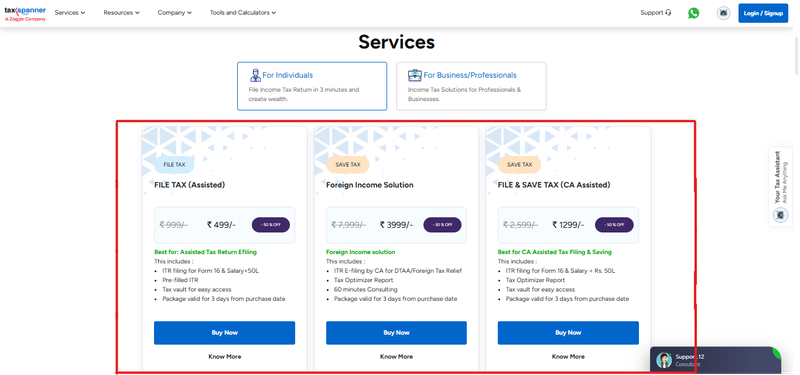
Step-3 Select Your Package
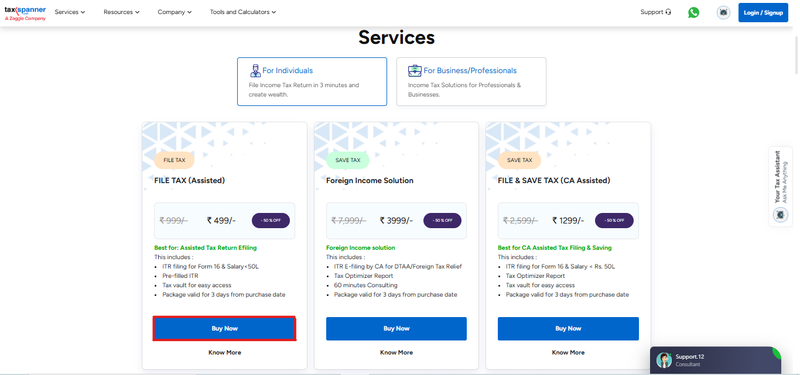
3.1: Choose the package you want and click “Buy Now.”
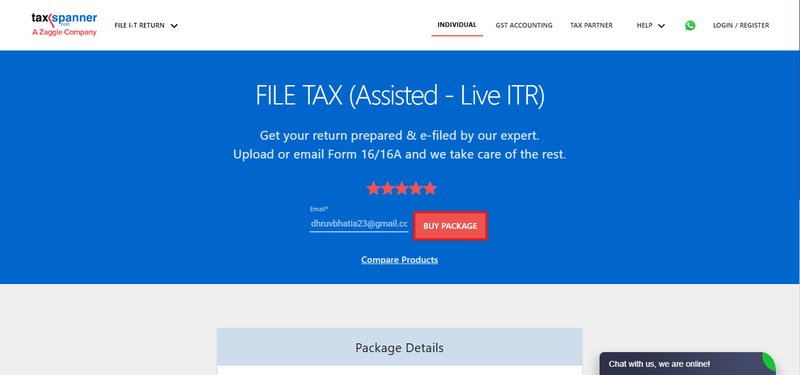
Step-4 Enter Your Details
4.1: Provide your email address, then click on “Buy Package.”
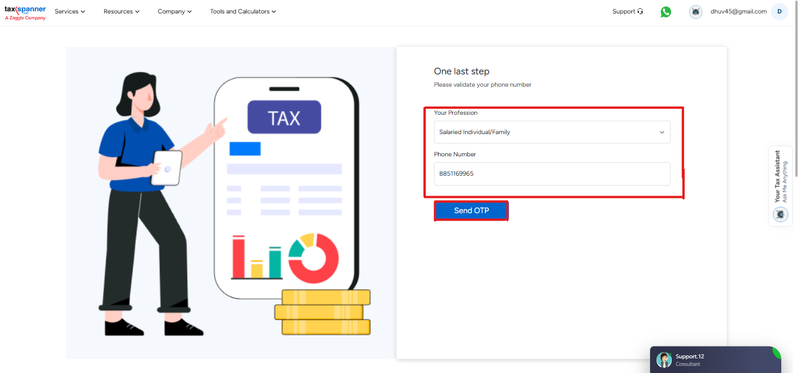
Step-5 Validate Contact Information
5.1: If you're a new user, enter your profession and mobile number.
5.2: Click on “Send OTP” to verify your contact details.
5.3: If you're already registered, you can skip this step.
Step-6 Proceed to Payment
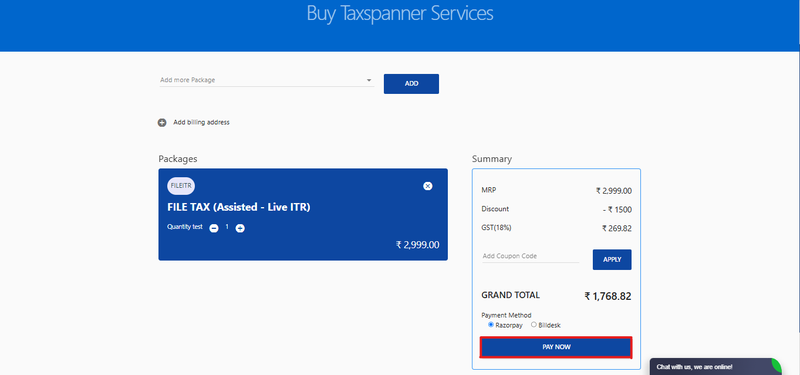
6.1: Verify the price and any discounts applied
6.2: Click on “Pay Now” to proceed.
6.3: You can complete the payment using either:
- Razorpay
- Billdesk
Flow-2 Purchasing a Package from Your Dashboard
Step-1 Log into Your Dashboard
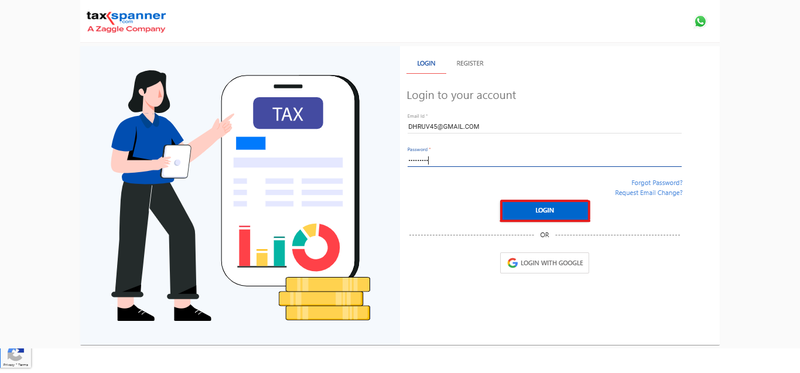
1.1: Click on “Login” at the top-right of the homepage.
1.2: Enter your registered email address and password.
1.3: Click “Sign In.”
Step-2 Start Creating Your ITR
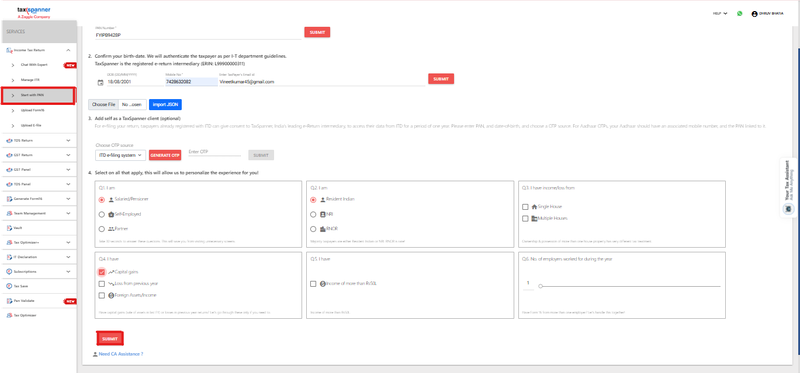
2.1: On your dashboard, click “Start with PAN”.
2.2: Enter required details: PAN Number, Date of Birth, Mobile Number and click
submit.
Step-3 Navigate to the Payment Section
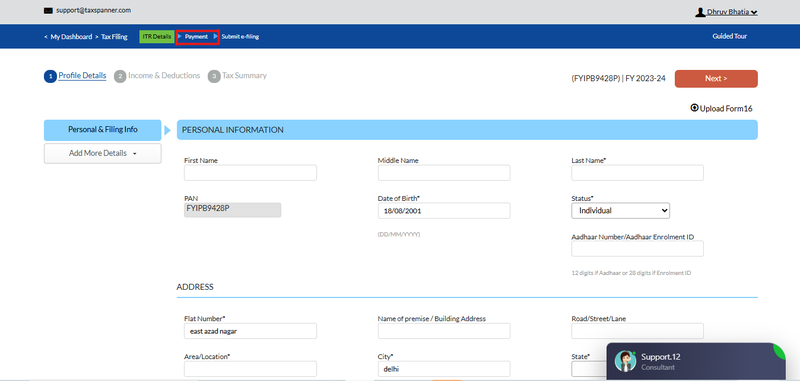
3.1: After submitting your ITR details, go to the “Payment” section located at the top-
left.
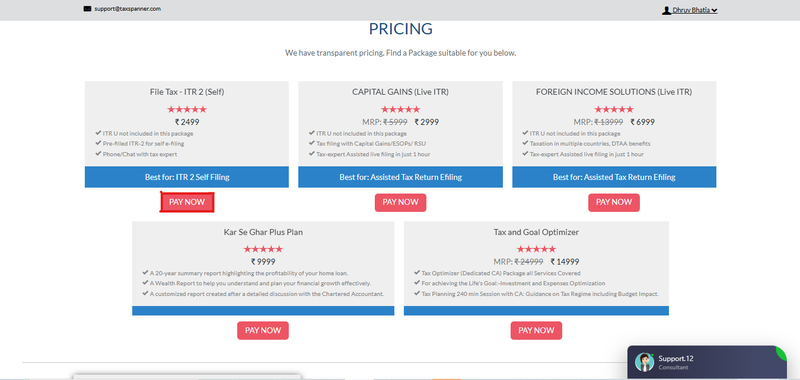
Step-4 Select a Package
4.1: Choose the appropriate package and click “Pay Now.”
Step-5 Complete the Purchase
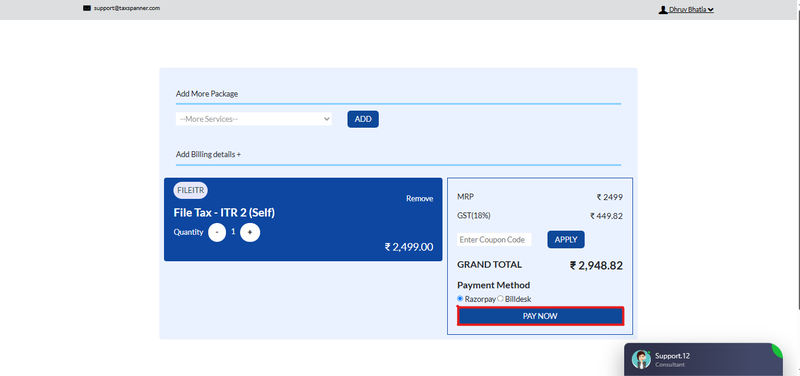
5.1: Verify the price and any discounts applied.
5.2: Click “Pay Now” to continue.
5.3: Choose between Razorpay or Billdesk to make your payment.
 GET STARTED
Try TaxSpanner today.
End-to-end tax compliance for individuals, professionals and businesses — in one platform.